How-To Guide
4 min readHow to Add Page Numbers to PDF Documents
PDFHubs Team
January 6, 2025
Add professional page numbering to your PDFs. Customize format, position, and starting number for any document.
Why Add Page Numbers?
Page numbers help with:
- •Document navigation
- •Reference in meetings
- •Professional appearance
- •Table of contents alignment
- •Legal document requirements
Numbering Options
Format Styles
- •Arabic numerals (1, 2, 3)
- •Roman numerals (i, ii, iii)
- •Letters (a, b, c)
- •Custom formats (Page 1 of 10)
Position Options
- •Top left, center, or right
- •Bottom left, center, or right
- •Inside or outside margins (for binding)
Step-by-Step Guide
- 1.Upload your PDF
- 2.Select numbering format
- 3.Choose position on page
- 4.Set starting number
- 5.Customize font and size
- 6.Preview and download
Advanced Options
Skip Pages
Exclude cover pages or section dividers from numbering.Different Sections
Use different number formats for different sections (e.g., Roman numerals for introduction).Prefix/Suffix
Add text before or after numbers (e.g., "Page 1" or "1 of 50").Professional Tips
- •Match font to document style
- •Use consistent positioning
- •Consider reader's perspective
- •Test print before finalizing
Tags:
page numbers
pdf numbering
document formatting
pdf editing
Ready to try these tips?
Use our free PDF tools to put this knowledge into practice.
Related Articles
How-To Guide
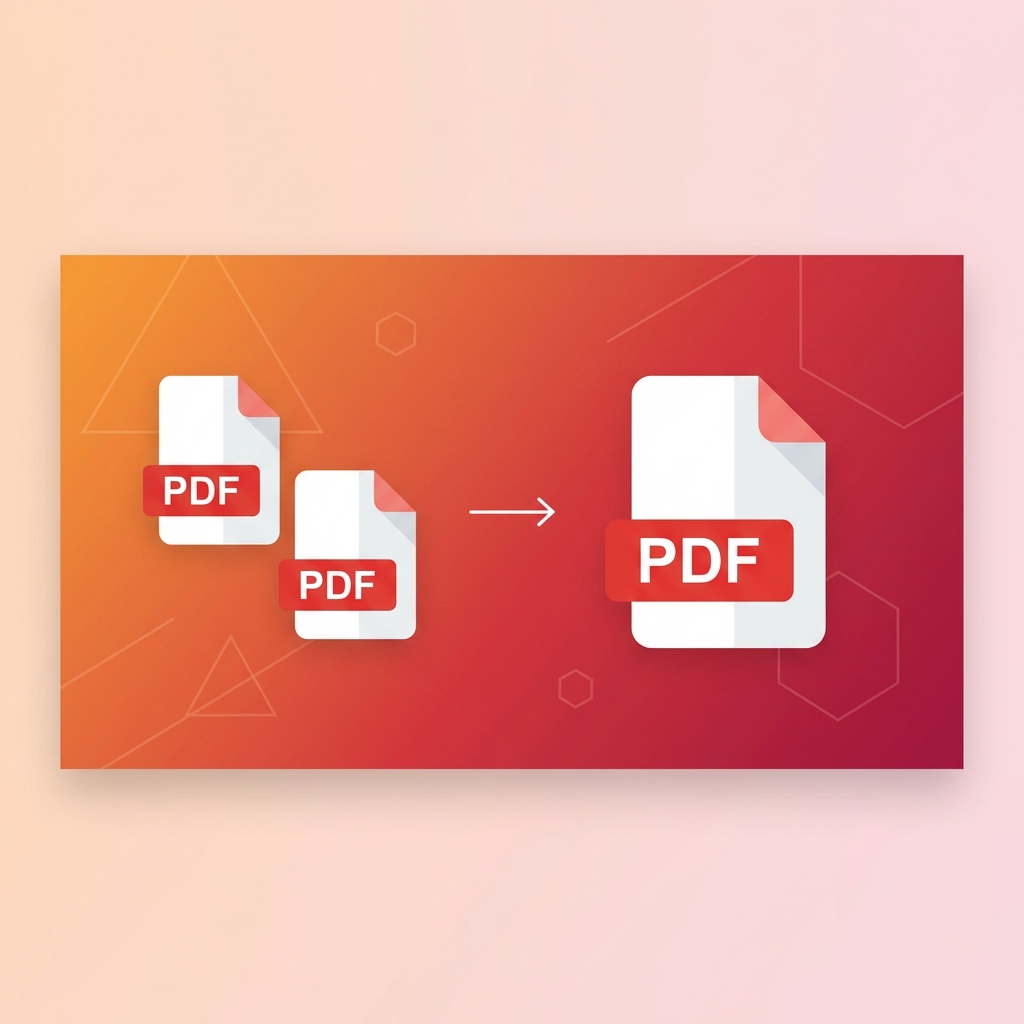
5 minHow to Merge PDF Files Online - Complete Guide 2025
Learn how to combine multiple PDF files into one document quickly and easily. Step-by-step guide with tips for best results.
Read Article
How-To Guide
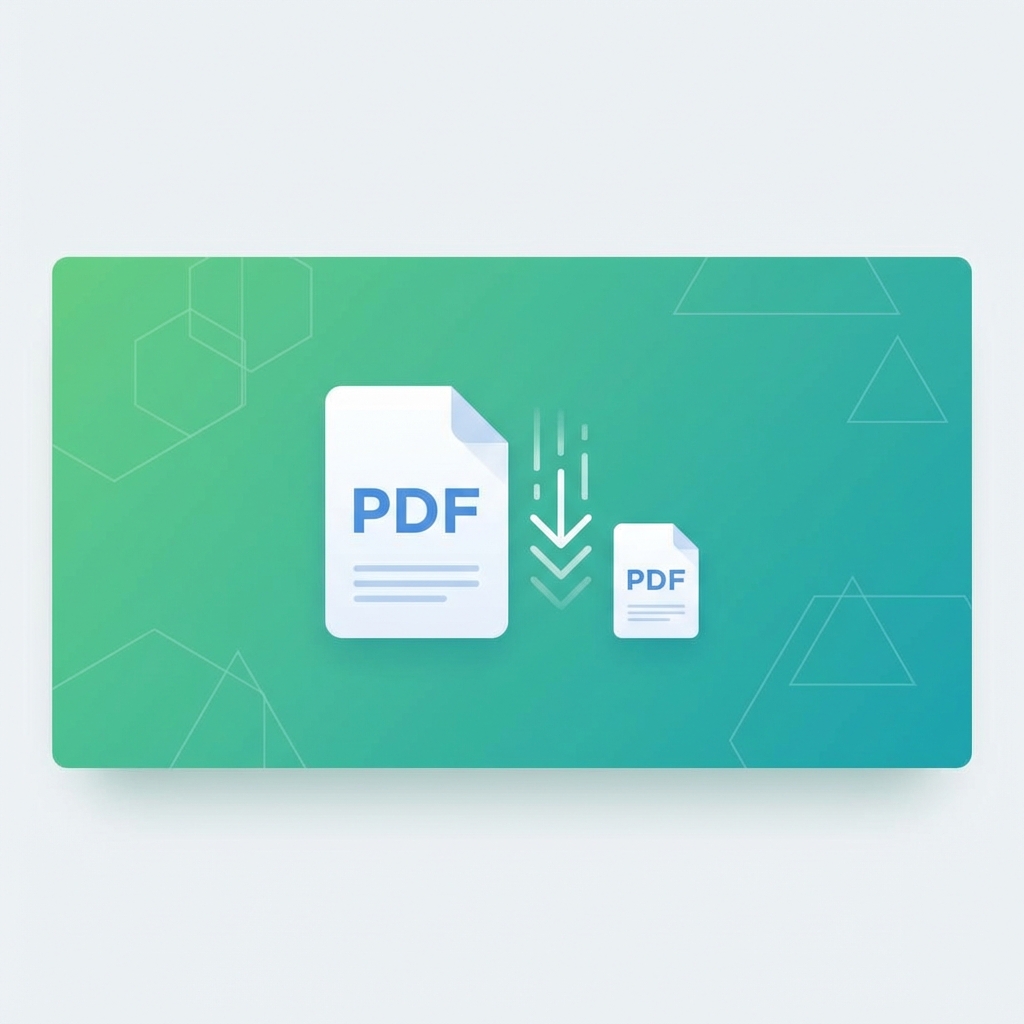
6 minHow to Compress PDF Without Losing Quality - Expert Tips
Reduce PDF file size while maintaining document quality. Learn professional compression techniques for optimal results.
Read Article
How-To Guide
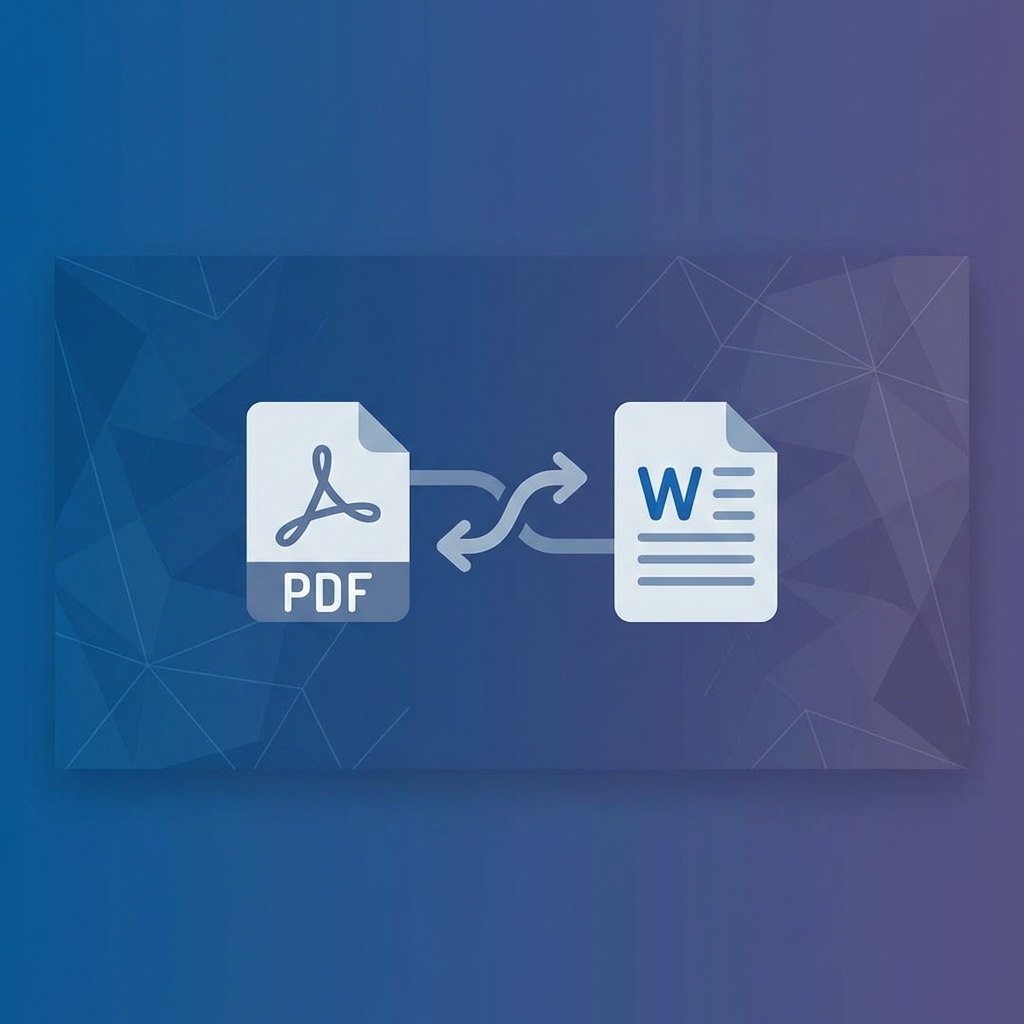
5 minHow to Convert PDF to Word for Free - 2025 Guide
Convert PDF documents to editable Word files instantly. Preserve formatting, tables, and images with our free converter.
Read Article